
Using Your Dashboard
Once a project leaves the render page, it lives on your dashboard. So do your balance, your payments, the devices signed in to your account and your account itself. This guide walks through every part of the dashboard, region by region, so you always know where to look.
The Dashboard at a Glance
Sign in and open your dashboard. Four regions share the screen, and three of them stay where they are whichever section you open. Only the large area in the middle changes.
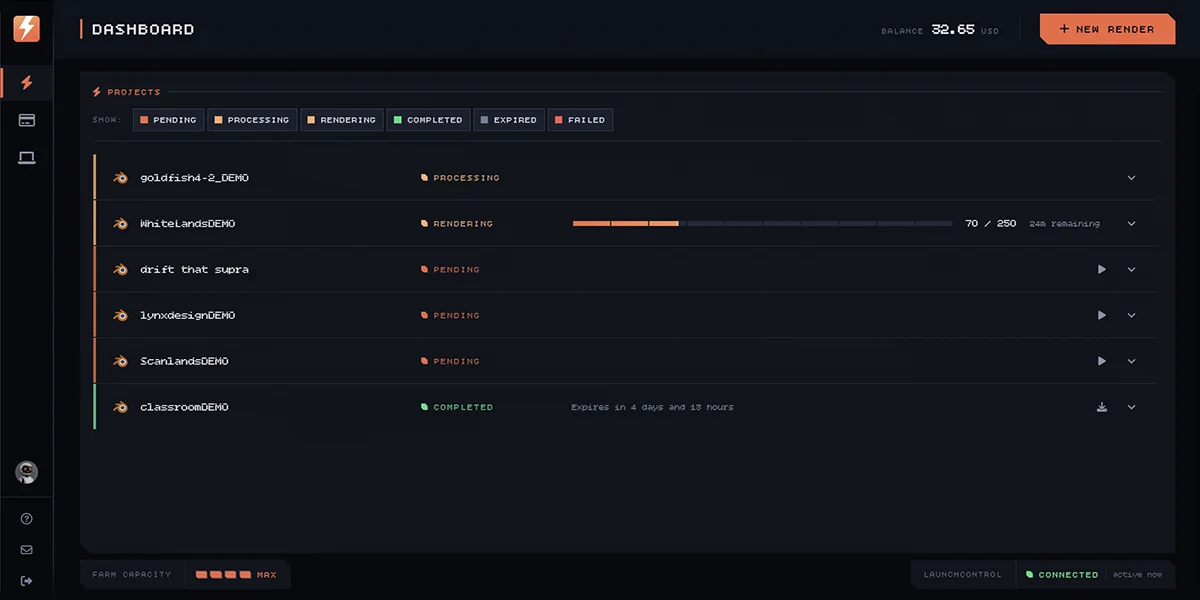
- The icon rail, down the left edge, moves you between sections.
- The title bar, across the top, names the section you are in and carries your balance and the New render button.
- The section itself: your projects, your payments, your signed-in devices or your account.
- The status strip, along the foot, shows how busy the farm is and whether LaunchControl is connected.
Move Between Sections
The rail down the left edge holds the four sections at the top and three utilities at the bottom. Hover any icon to see its name.
The Four Sections
- Dashboard is your list of projects, and where the page opens.
- Payments is where you add balance, apply a coupon and see every transaction.
- Sessions lists the browsers and Blender installs signed in to your account.
- Account holds your picture, name and email, your password, the newsletter and account deletion. Its icon is your own profile picture.
Each section has its own address, so you can bookmark one or keep it open in a tab: /dashboard#payments, /dashboard#settings for Sessions, and /dashboard#account. Your browser's back and forward buttons move between the sections you have visited.
Help, Support and Log Out
- How to opens the documentation, where this guide lives.
- Support opens the contact page. If your question is about a specific render, include its ID: the project.s details have a button that copies it.
- Log out signs you out of this browser only. To sign out somewhere else, use Sessions.
Check Your Balance and Start a Render
The title bar names the section you are in, and the name types itself in each time you change section. On its right sit the two things you need from anywhere on the dashboard.
- Balance is the credit on your account, in your currency. When you start a render you can spend it first and let your card cover whatever is left. Payments is where you top it up.
- New render opens the render page, where you upload a project and get its evaluation. Set up a new render covers that page step by step.
Follow Your Projects
The Dashboard section is one list of every project you have submitted. It updates on its own: a status change, the time remaining on a render and a finished job all arrive without a reload, so you can leave the tab open or come back to it later.
Filter the List
The chips above the list decide which projects it shows. All six are on to begin with, and switching one off hides every project in that group. Your choice is remembered in this browser, so the list opens the way you left it.
Each chip carries the colour its projects wear, which makes the row of chips the legend for the whole list.
- Pending means the evaluation is done and the quote is waiting for you.
- Processing covers every stage of the evaluation, from Starting Evaluation to Preparing Results.
- Rendering covers Initializing, Rendering and Finalizing.
- Completed, Expired and Failed are the three ways a project ends.
What every one of those statuses means, and what to do about each, is set out in Understanding project statuses.
Read a Project Row
Each project is one row. From left to right:
- A thin bar down the left edge in the status colour.
- The Project's name.
- The status, beside a small square lamp in the status colour.
- While it renders, a progress bar and the time remaining. Once it is complete, a countdown to the day its files are deleted.
- On the right, the one action that project needs right now, if any, and the arrow that opens its details.
Open a Project's Details
Click anywhere on a row to open it. The details panel holds the project's spec and everything you can do with it.
- The spec: Scene, Version, Engine, Resolution, Frames and Format, all read from your file when it was uploaded.
- The tier the project runs on, with the time of its last update and the date it was created.
- The ID, with a button that copies it to your clipboard. It is the quickest way for support to find your project.
A failed project also shows what went wrong above its details. When the cause is missing files, Show more lists each missing asset by type and name, so you know what to fix before you upload again.
What You Can Do With a Project
The controls follow the status, so a project only ever offers what makes sense for it.
- Start Rendering on a pending project takes you back to its quote and test frames, where you choose a tier and start.
- Download Files on a completed project opens its download page. Downloading your rendered files covers that page.
- Reset on a failed project puts it back to Pending, so you can start it again from its quote. It only appears when the project can still be retried.
- Delete is available once a project is pending, completed, expired or failed, never while it is being evaluated or rendered. It asks you to click a second time, and a deleted project cannot be brought back.
Before Your First Project
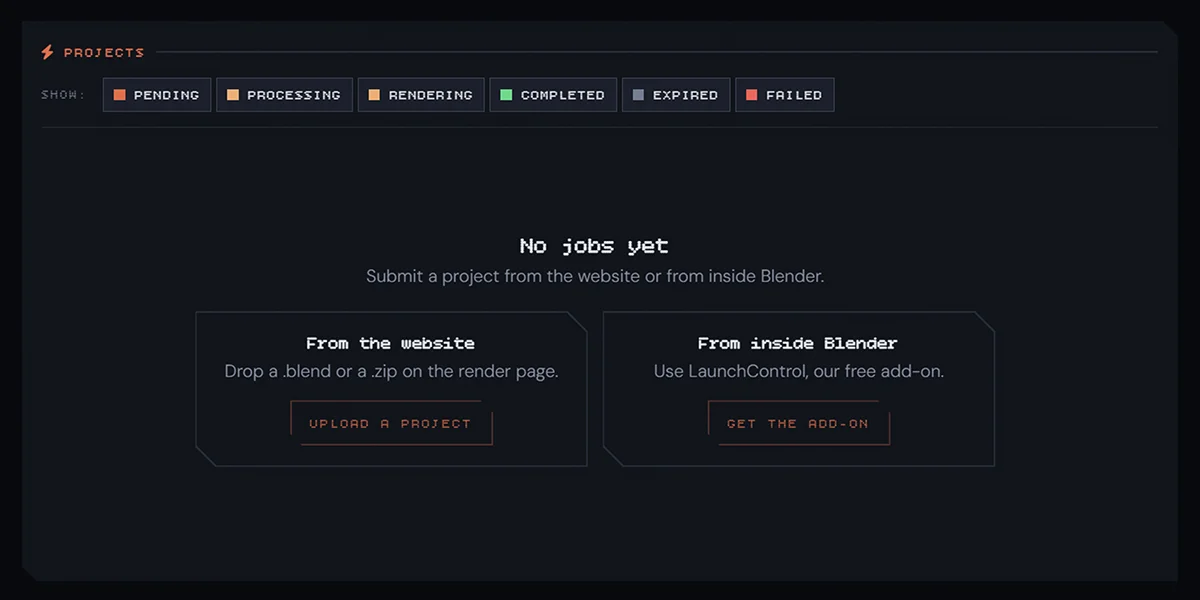
With nothing submitted yet, the list shows two ways in: Upload a project opens the render page, and Get the add-on opens LaunchControl, our free Blender add-on, for submitting without leaving Blender.
Add Balance and See Your Payments
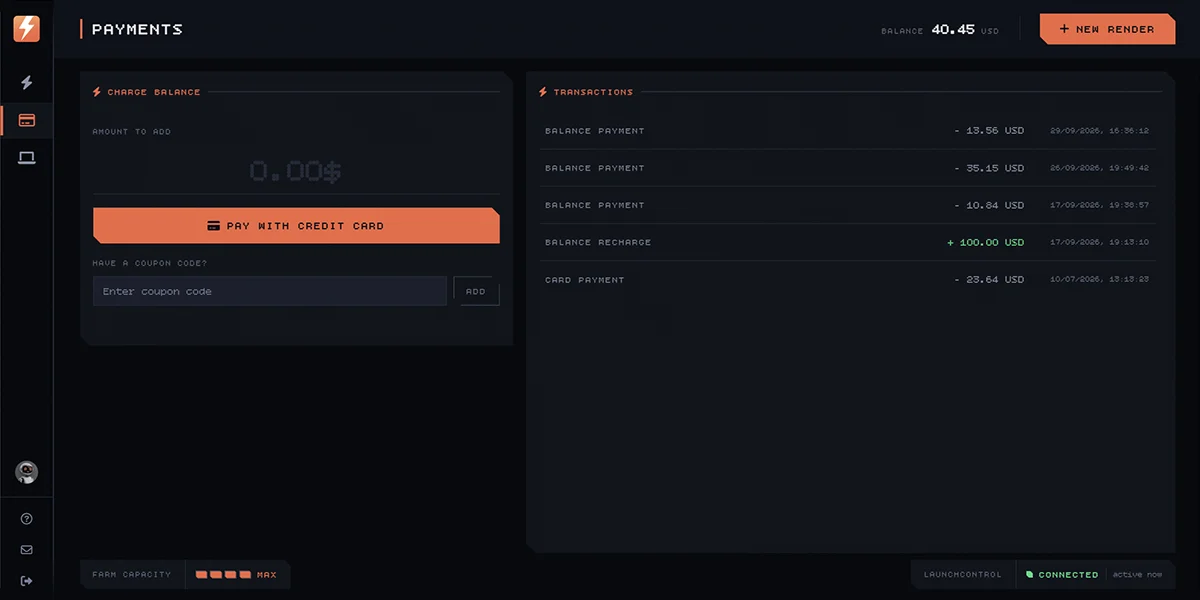
The Payments section has two cards: one to add credit, one listing everything that has gone in and out.
Charge Your Balance
Type an amount in your currency and choose Pay with Credit Card. You go to a secure Stripe checkout, and the credit is on your balance when you come back. A single charge can be anything from 5.00 to 1,000.00.
Apply a Coupon
Enter the code under Have a coupon code? and choose Add. A line beneath the field tells you how much credit was added, or why the code was not accepted. Accepted credit goes straight onto your balance and into your transactions.
Your Transactions
Every movement on your balance is listed with its type, its amount and the date. Credit coming in is marked with a plus, and money going out with a minus.
Manage Signed-In Devices
The Sessions section shows everywhere your account is signed in, in two lists.
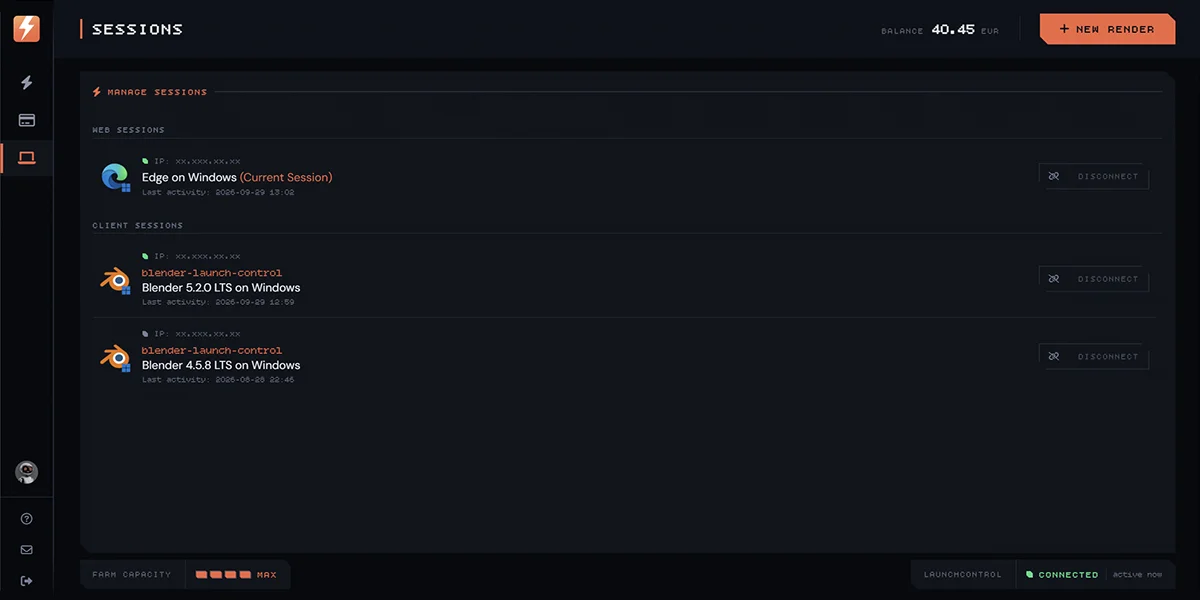
- Web Sessions are browsers. Each one names the browser and operating system, the IP address it connected from and its last activity. A lit green dot means it is active now, and the browser you are reading from is marked (Current Session).
- Client Sessions are Blender installs signed in through LaunchControl, each with its last activity.
Disconnect signs that browser or that Blender install out of your account. If you see a session you do not recognise, disconnect it and change your password.
Your Account
The Account section opens with who you are, followed by three cards.
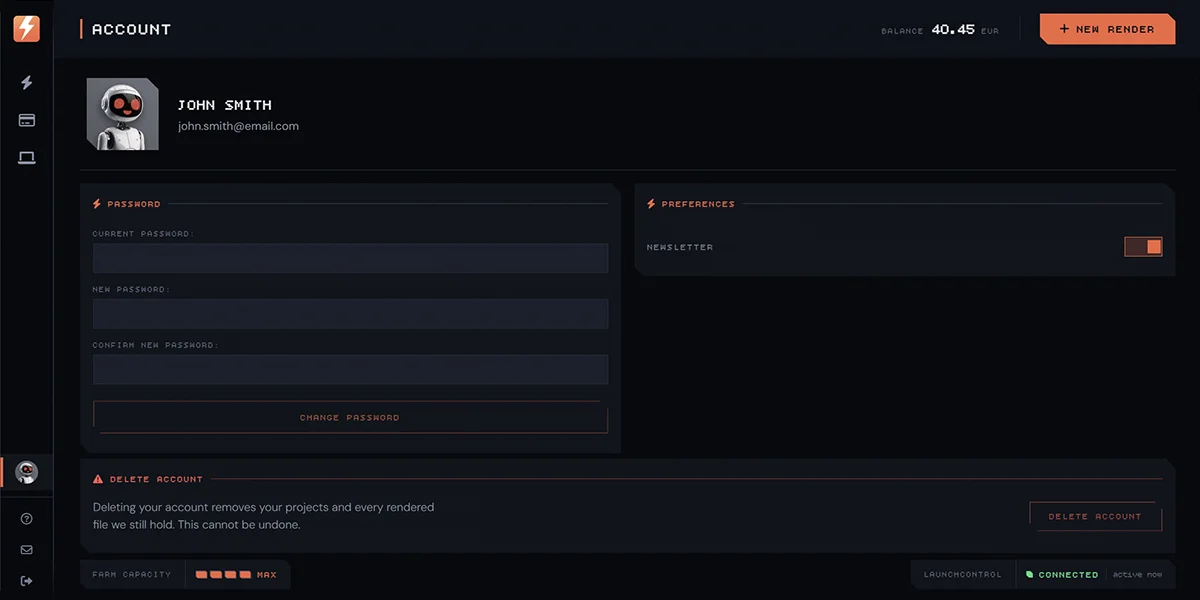
Your Picture, Name and Email
Click your picture to choose a new image from your computer. Once it uploads, the page reloads with the new picture, here and on the Account icon in the rail. Your name and email are shown as they are on your account.
Change Your Password
Enter your current password, then the new one twice, and choose Change Password. You are told if the current password is wrong or if the two new ones do not match. Forgotten it entirely? Sign out and use reset password instead.
The Newsletter
The Newsletter switch under Preferences subscribes you or takes you off the list, and saves as soon as you flip it. It brings deals, platform news and rendering guides, no more than once a month.
Delete Your Account
Deleting your account removes your projects and every rendered file we still hold. It cannot be undone, so the button asks you to click a second time before anything happens. If a render is still worth keeping, download it first.
Farm Capacity and LaunchControl
The strip along the foot of the dashboard reports two things that sit outside any one project.

Farm Capacity
A meter showing how much of the farm is free right now, in four readings: MAX, GOOD, LOW and FULL. It is there so a busy moment is not a surprise. The quote on the render page always gives you the delivery time for your own project.
LaunchControl
Whether a Blender install is signed in to your account through LaunchControl:
- Connected means it is active now.
- Standby means an install is signed in but idle, and shows when it was last seen.
- Not connected means no Blender install has signed in yet, with a link to get the add-on.
It reads Checking while the dashboard loads. The installs themselves are listed, and can be signed out, under Sessions.