
Preparing a Project with the Preparation Suite
The Preparation Suite is the half of LaunchControl that works on the project you have open. Four buttons: one that tells you what is wrong, two that fix it, and one that is there for when you want to do a job by hand. This guide covers what each one does and the order that leaves nothing behind.
Why Preparation Matters
A render node is not your machine. It does not have your second drive, your texture library or the folder on the desktop where that one image ended up. Anything your scene reaches for by an absolute path is simply not there, and a simulation that was never baked has no data to play back. That is where the missing assets errors come from, and it is the single most common reason a job comes back wrong.
The Preparation Suite is the same checklist described in How to prepare a Blender project file, done for you. Reading that guide is worth it if you want to understand what is being fixed. This one covers what each button does and the order to press them in.
All four tools work whether or not you are signed in to BoltRenders.
The Three Repair Tools
These three run in sequence: one finds the problems, two fix them. They operate on the project you have open, and they do change it, which is the point.
Check Integrity
Start here. Check Integrity inspects the open project and reports what would break on a farm: assets that live outside the project folder, broken or missing file paths, and simulations that have not been baked.
It changes nothing. It is a report, and on a project that has been worked on for a while it is usually not a short one. That is normal, and the next two buttons exist to clear it.
Run it again after fixing things. A clean report is the signal that the project is ready to leave your machine.
Bake All Simulations
Bake All Simulations walks the whole scene and bakes every physics simulation it finds, cloth, smoke, particles and the rest, in one pass. You do not have to visit each modifier and bake it by hand.
Where a simulation uses disk caching, LaunchControl writes its cache into an organised structure inside your project folder rather than wherever Blender's default happened to point. That is what stops a cache from being left behind when the project travels, which is the failure that produces a render where the simulation simply does not appear.
Baking takes as long as baking takes. On a heavy scene this is the slow step of the whole preparation, so start it and go and do something else.
Consolidate Assets
Consolidate Assets deals with everything scattered across your drives. It packs into the .blend file everything Blender can embed, and copies whatever cannot be embedded into an assets folder inside the project directory, repointing the file at the copies.
The result is a project that is portable: self-contained where it can be, and self-referential where it cannot. That matters as much for handing a file to another artist as it does for a render farm.
Collect External Add-ons
The fourth button is different from the other three, and most people never need to press it.
Collect External Add-ons gathers the third-party add-ons currently enabled in your Blender and writes them into a folder in your project root, next to the .blend file, with the name and structure the farm expects. Do not rename, move or edit that folder. Its exact name and layout are what let BoltRenders identify and deploy the add-ons on the render nodes.
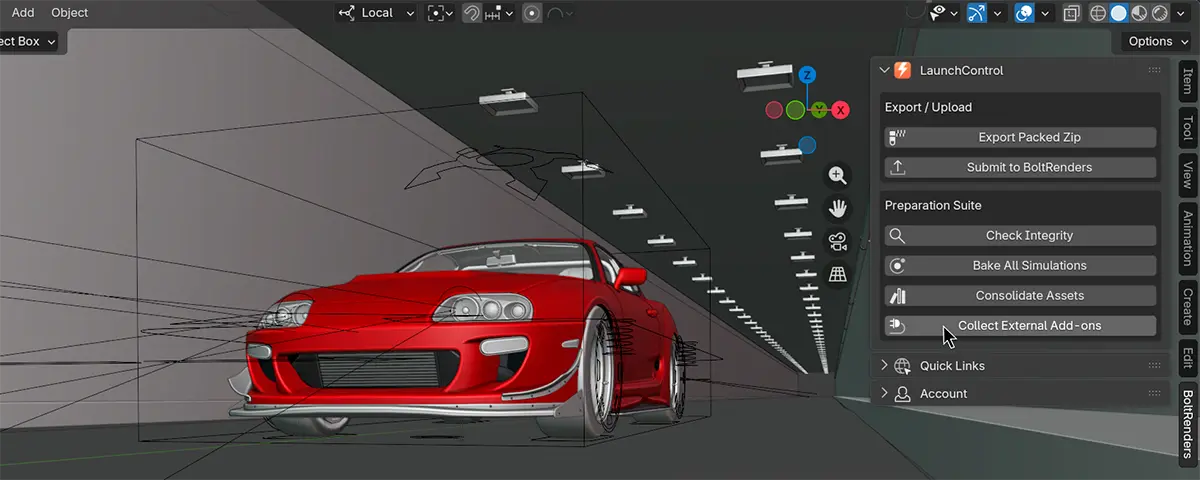
It is not a prerequisite for anything. With Sync Add-ons enabled in the add-on preferences, which it is by default, both Export Packed Zip and Submit to BoltRenders gather your add-ons on their own. This button exists so you can run that one step deliberately, on its own terms, and see the folder it produces.
The reasons to reach for it are all about control: you are assembling a project folder by hand to upload through the website, you want to inspect exactly which add-ons are being carried, or you want the folder present in the project itself rather than only inside a package. If none of those is true, leave it alone.
One rule if you do use it: re-run it after installing or updating any add-on, so the folder reflects the Blender you are actually working in.
The Order That Works
The four buttons are not a sequence you must follow, but there is an order that leaves nothing behind:
- Check Integrity, to see what you are dealing with.
- Bake All Simulations, because consolidating before the caches exist means consolidating an incomplete project.
- Consolidate Assets, to bring everything home.
- Check Integrity again. This time it should come back clean.
- Save the file. This one is easy to skip and it undoes the rest.
Baking before consolidating is the part that matters. The other way round, the caches your simulations wrote after the consolidation pass are outside the tidy structure and travel badly.
With a clean report and a saved file, the project is ready to leave Blender. Exporting and submitting from Blender covers the two ways out.