

Rendering Blender File Outputs on BoltRenders
Published on
Blender's File Output node is one of the most powerful features of the Compositor. It allows you to save render passes or composited images directly to separate files while rendering. Unlike Blender's standard output, which only saves the final render or a Multilayer OpenEXR containing the raw render passes, File Output nodes let you export data from any point in the compositing pipeline. This includes render passes such as Diffuse, Normal, Depth, Cryptomatte, masks, or fully composited images after processing.
File Output nodes are widely used in professional workflows for visual effects, compositing, color grading, and pipeline automation. Every output can have its own format, color settings, and destination, making it possible to generate multiple deliverables in a single render.
This guide explains when File Output nodes are actually worth using, how they differ from Blender's standard outputs, and the best practices for configuring them to work flawlessly on BoltRenders.
Setting Up File Output Nodes
File Output nodes are most useful when you need full control over what is written to disk. They let you save individual render passes, masks, or composited results as separate files, choose different file formats for each output, and organize them into custom folder structures all within a single render.
By comparison, Blender's standard Multilayer OpenEXR output simply packs every enabled render pass from every enabled View Layer of the active render scene into a single EXR file. It does not evaluate the Compositor, meaning any processing, mixing, or filtering performed in the node tree is ignored. Likewise, if your compositor references additional scenes using Scene nodes, their outputs are not included in the standard Multilayer OpenEXR. For workflows that only require the raw render passes from the active scene, Multilayer OpenEXR is typically the simplest and most efficient option.
When you need to export processed compositor results, combine data from multiple scenes, or generate custom outputs in different formats, File Output nodes are the appropriate solution.
Required Blender Settings
Before rendering on BoltRenders, there are two important settings to verify. Missing either of them will prevent your File Output nodes from working correctly.
- Your scene must use a Compositor node tree. BoltRenders only evaluates the active compositor of the scene being rendered, so any File Output nodes must belong to that node tree.
- Under Output Properties → Post Processing, make sure Compositing is enabled. If this option is disabled, Blender skips the entire compositor during rendering, meaning none of your File Output nodes will be executed.
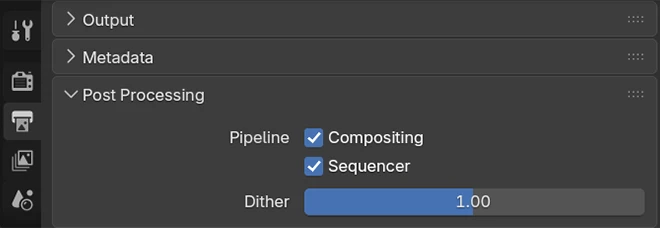
Setting up a file output node
BoltRenders supports every File Output configuration that Blender can generate. However, following a few simple naming conventions will make your outputs much easier to browse and download after rendering.
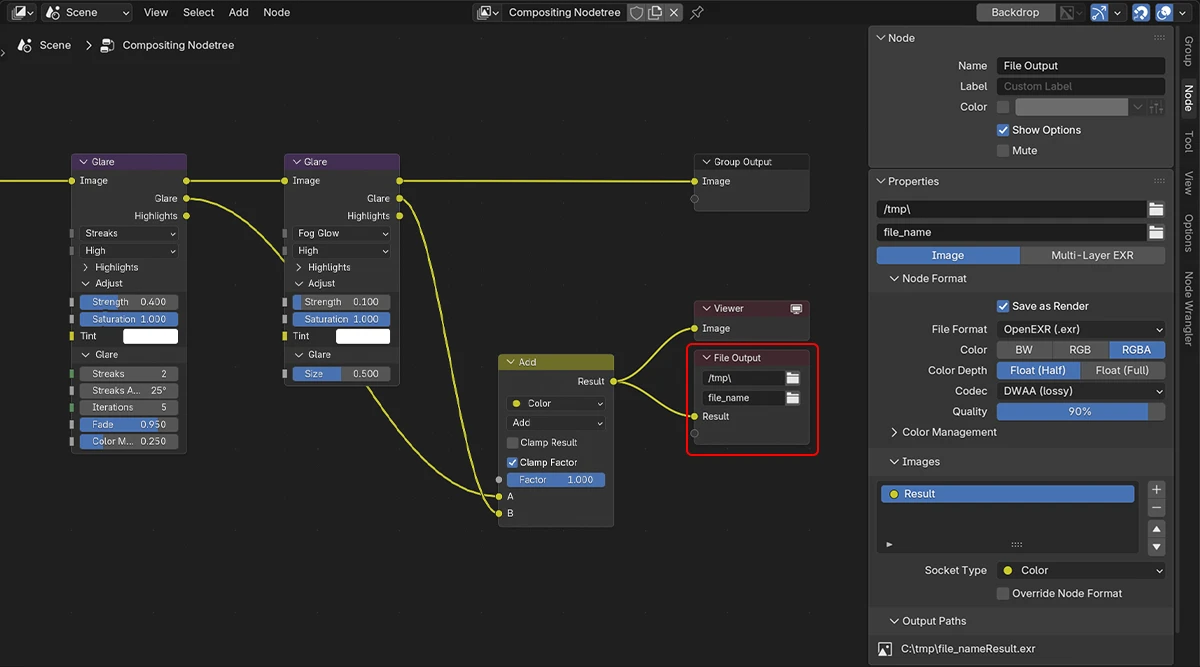
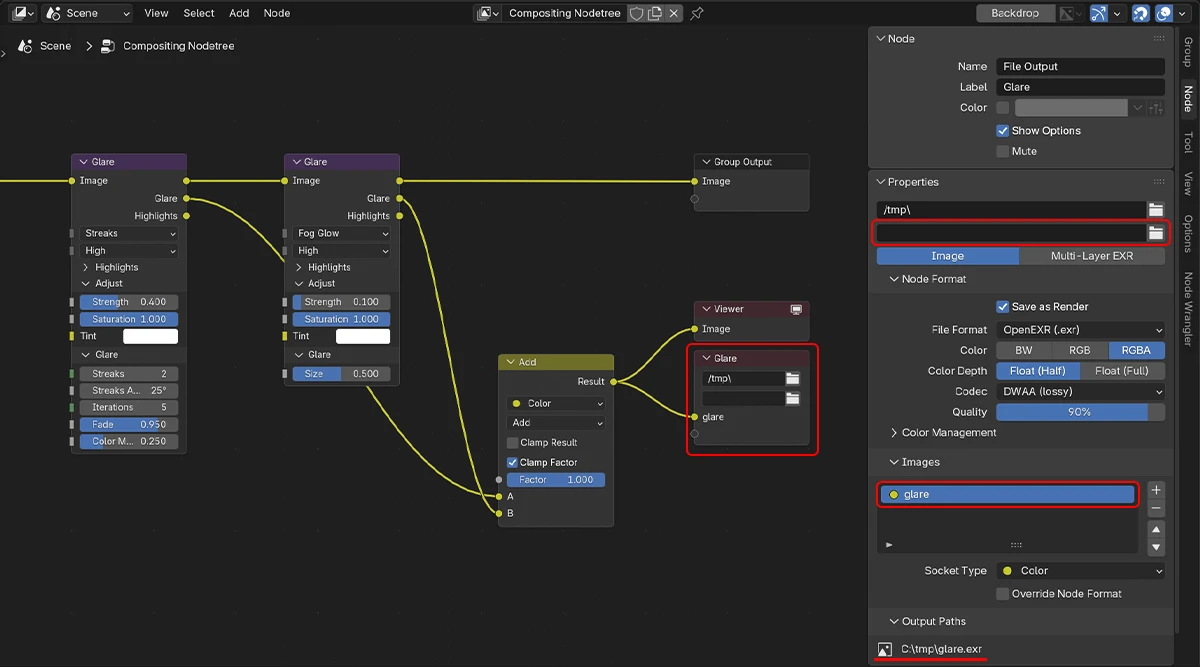
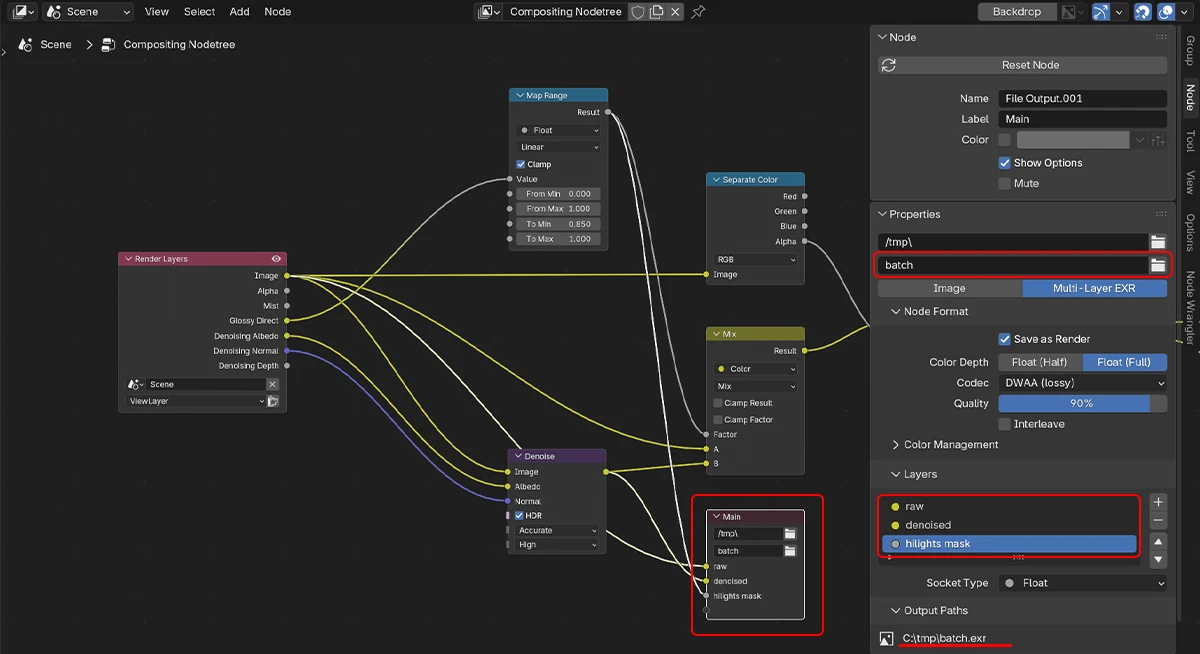
Each File Output node generates its own output folder on BoltRenders. By default, this folder is named after the node's Label, falling back to the node name if no label is set. Giving your nodes meaningful labels greatly improves the organization of your rendered files. The folder path configured inside Blender is ignored by BoltRenders, so you are free to use any local path for testing without affecting the cloud render.
When exporting individual image files (PNG, EXR, TIFF, JPEG, etc.), it is recommended to leave the File Name field empty and instead give each input socket a meaningful name. Blender generates filenames using the pattern:
[File Name][Socket Name][Frame Number]
Since Blender usually names sockets "Image" or "Result", leaving the defaults often produces filenames that are difficult to identify. By clearing the File Name field and renaming each socket appropriately, your outputs become much cleaner: for example Diffuse000123.png or Depth000123.exr. This is especially useful when a single File Output node contains multiple outputs, as they will all be saved into the same folder.
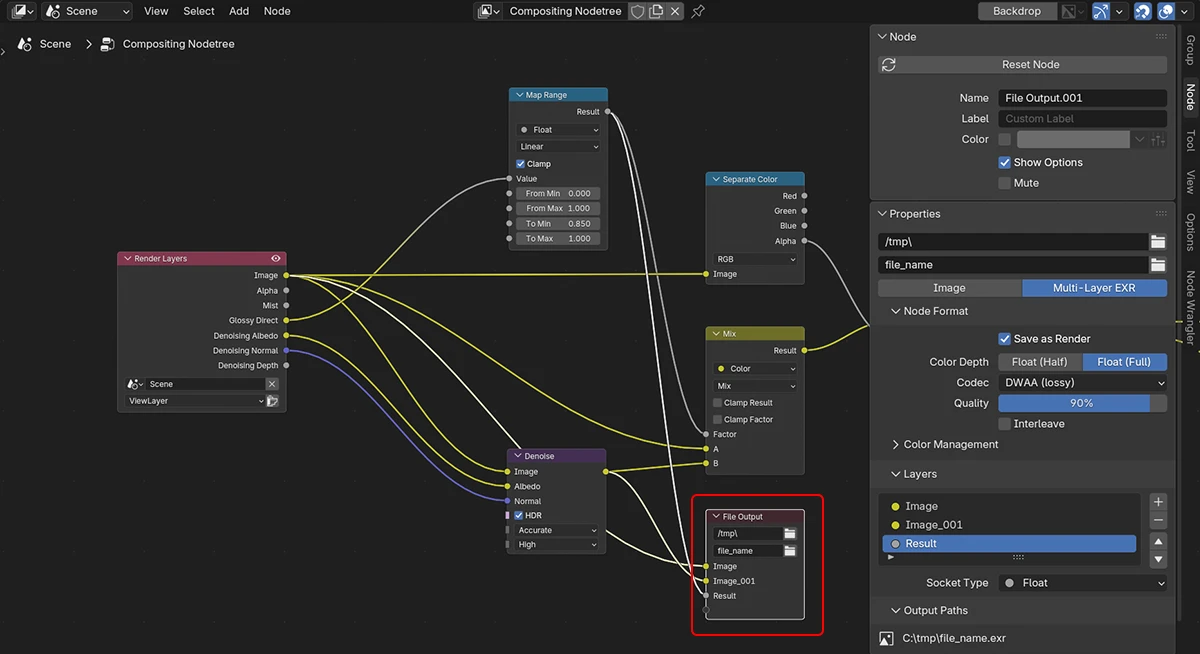
When exporting a Multilayer OpenEXR, the naming behavior is slightly different. Blender generates filenames using only the File Name field followed by the frame number, while the input socket names become the names of the EXR layers. For this reason, it is still good practice to give each socket a clear, descriptive name so that the layers remain easy to identify inside compositing software.
Always Connect the Group Output
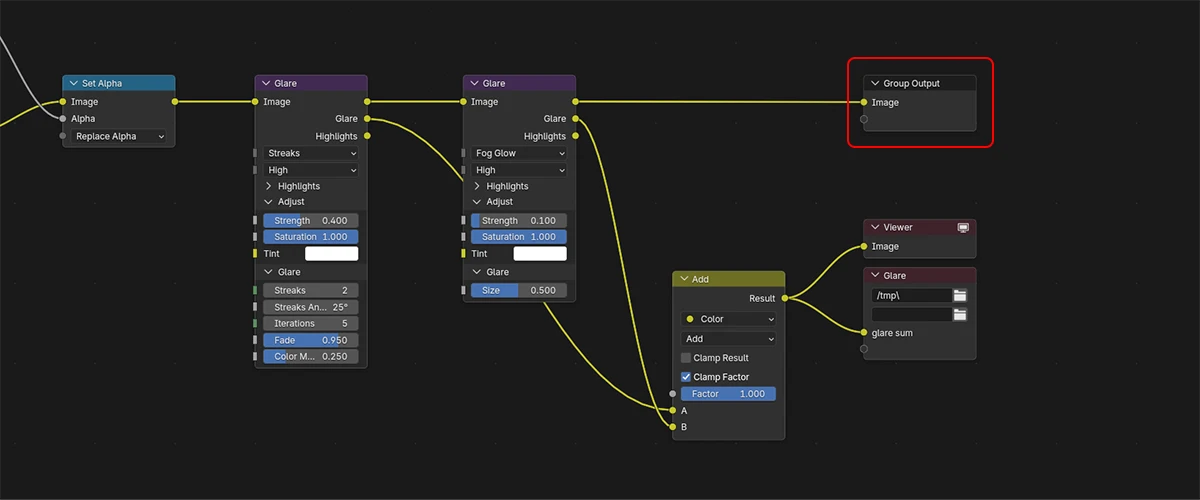
Even when using File Output nodes, Blender still generates its standard render output. For that reason, you should always connect something useful to the final Group Output of the compositor, typically the fully composited image. Leaving the output disconnected results in blank images being rendered and delivered alongside your File Outputs. These files provide no value while still occupying storage space, making this a simple best practice that's worth following.
Browsing and Downloading File Outputs
During project evaluation, BoltRenders automatically detects every File Output node in your compositor. You can inspect each output, preview the generated files, and browse the layers contained in Multilayer OpenEXR outputs before starting the render.
After rendering completes, the output browser lets you navigate the complete folder structure generated by your File Output nodes. You can preview images, browse folders, and download individual frames, entire output folders, or the complete render with a single click.
Conclusions
File Output nodes are one of Blender's most flexible rendering features, allowing you to export exactly the data your workflow requires. While Blender's standard Multilayer OpenEXR output is often sufficient for storing raw render passes, File Output nodes become indispensable whenever you need processed compositor results, custom naming, multiple formats, or outputs generated from multiple scenes. Following the best practices described in this guide will keep your renders organized, make downloads easier to navigate, and ensure your projects render correctly on BoltRenders.